
When a client refers to more than one matter in a single message, the challenge is not simply reading the words. The office must determine which part of the inquiry relates to which case, document, appointment, or account context before anyone prepares a response. This leads to a practical question for legal operations teams: How can OrderTech Legal help a law office connect a client inquiry to multiple case files before responding?
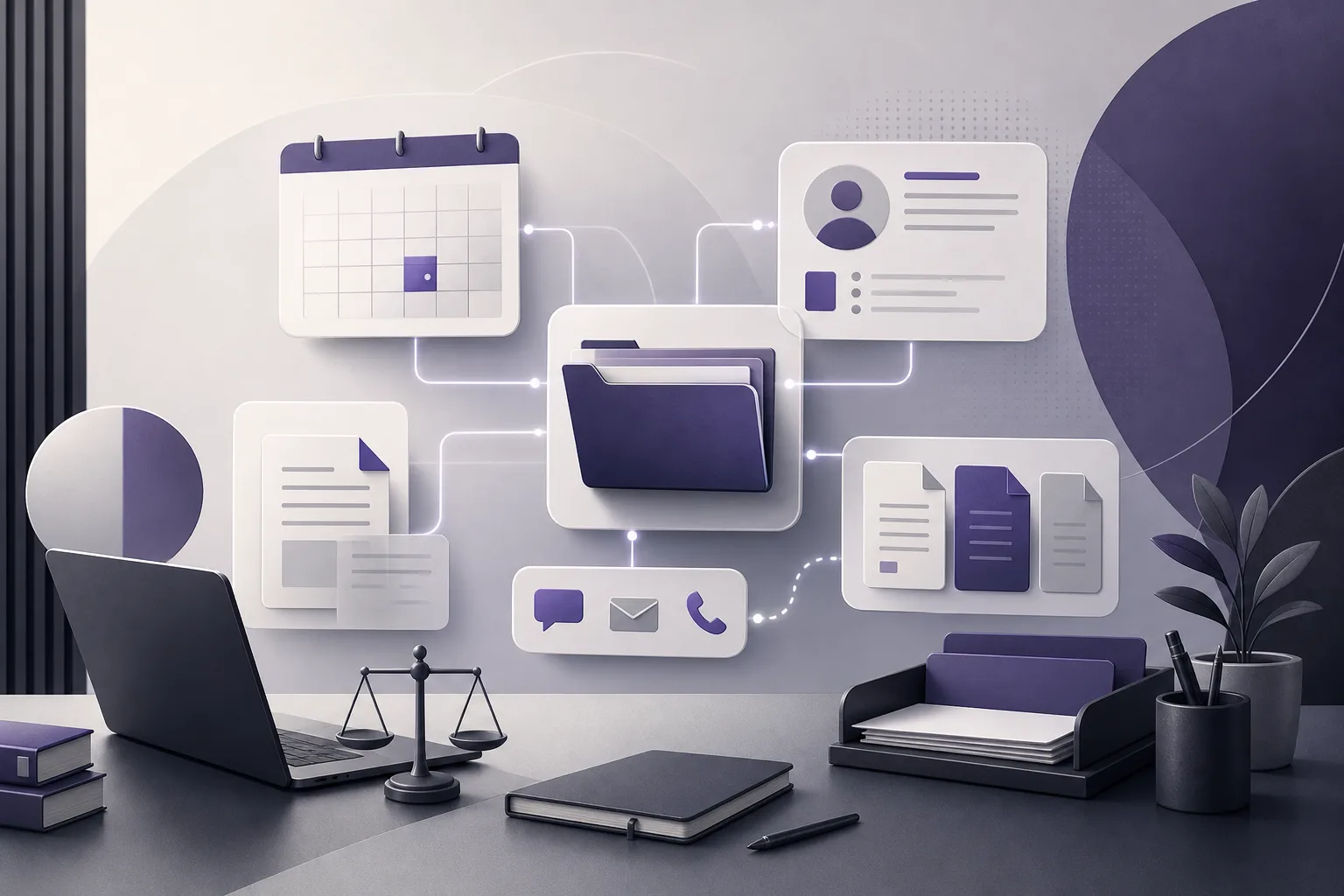
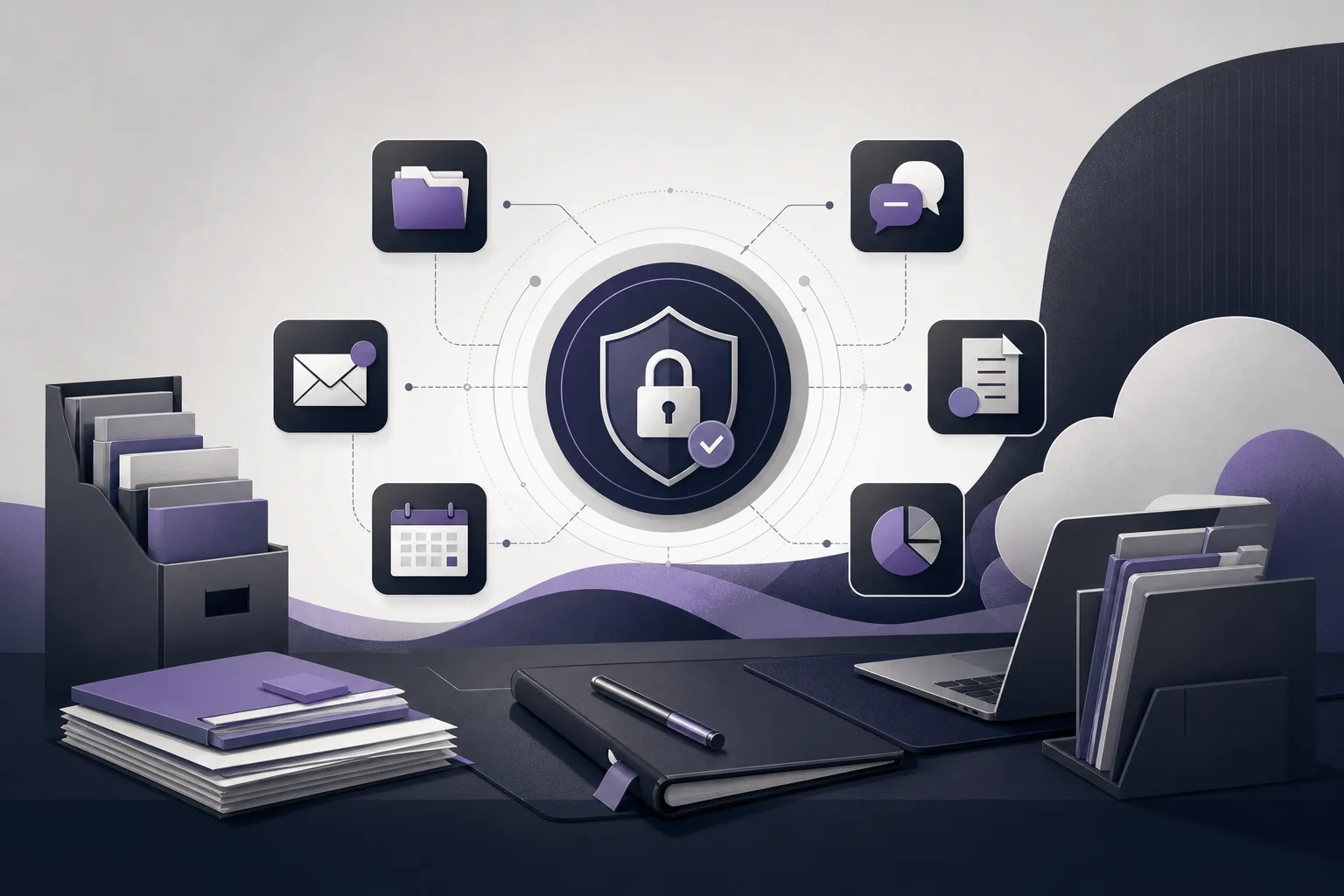
OrderTech Legal brings case and client management, documents, appointments, and accounts together in one workspace for the office. That shared workspace can help staff review the available client record, case information, and conversation context without treating each source as an isolated piece of information. It does not mean that the platform independently decides which file applies or provides an automatic legal answer. The result depends on the office configuration, enabled services, user permissions, and human intervention.
Why inquiries involving multiple matters are difficult
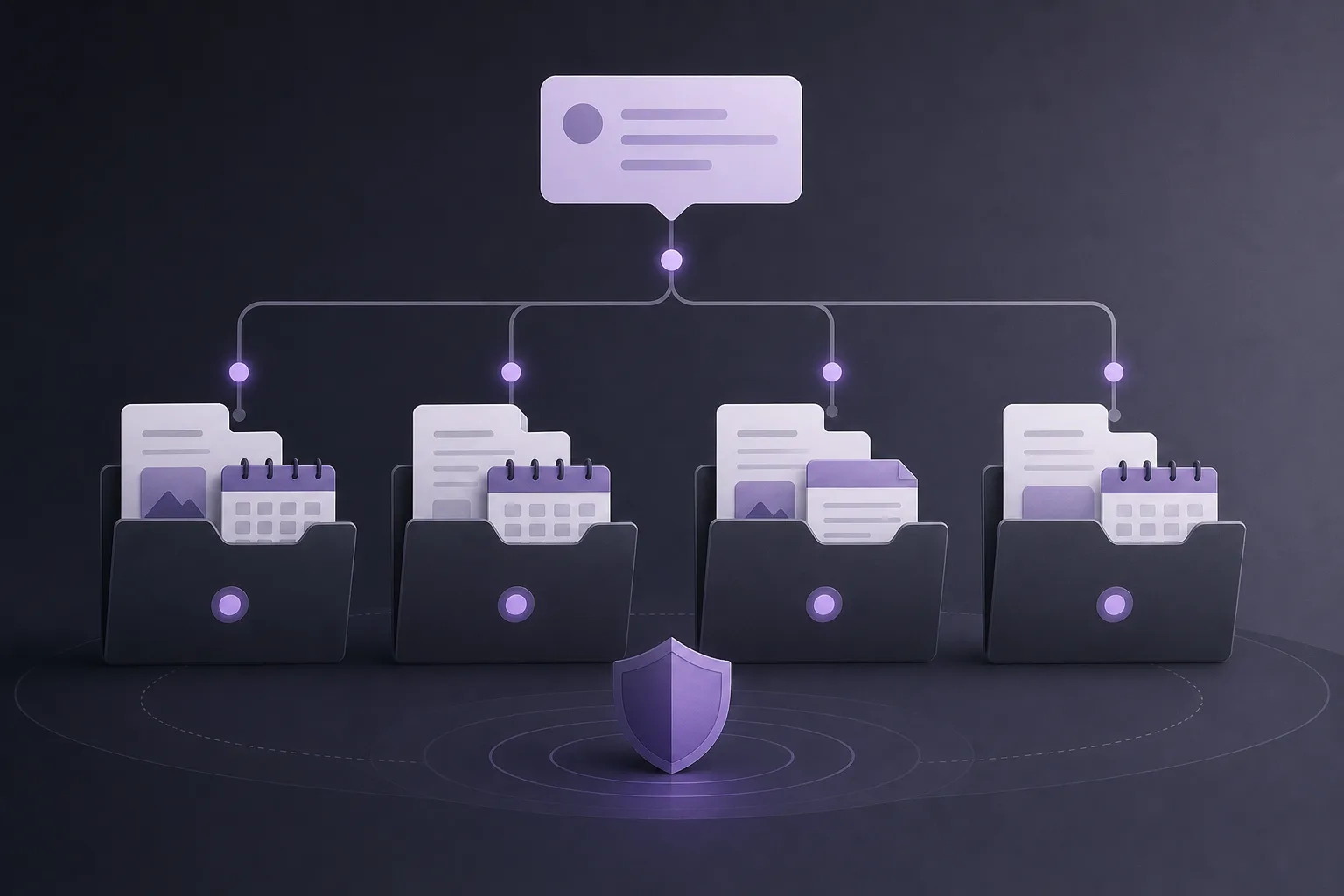
A client may mention a deadline from one case, a document from another, and a general request for an update in the same message. Short descriptions or informal references may not be enough to identify the relevant matter with certainty.
- Several contexts appear at once: the client may move between matters without separating them clearly.
- Information may feel disconnected: the client record, case files, documents, appointments, and conversation history all need to be considered together.
- A premature response can be misleading: relying on one case file before reviewing the others may produce an incomplete draft.
- Access must be controlled: the staff member handling the inquiry may not have the same permissions as the supervising lawyer.
This is primarily a workflow and coordination problem. The office needs a reliable way to assemble the relevant context before deciding how to respond.
How OrderTech Legal supports the coordination process
1. Start with the client record and conversation context
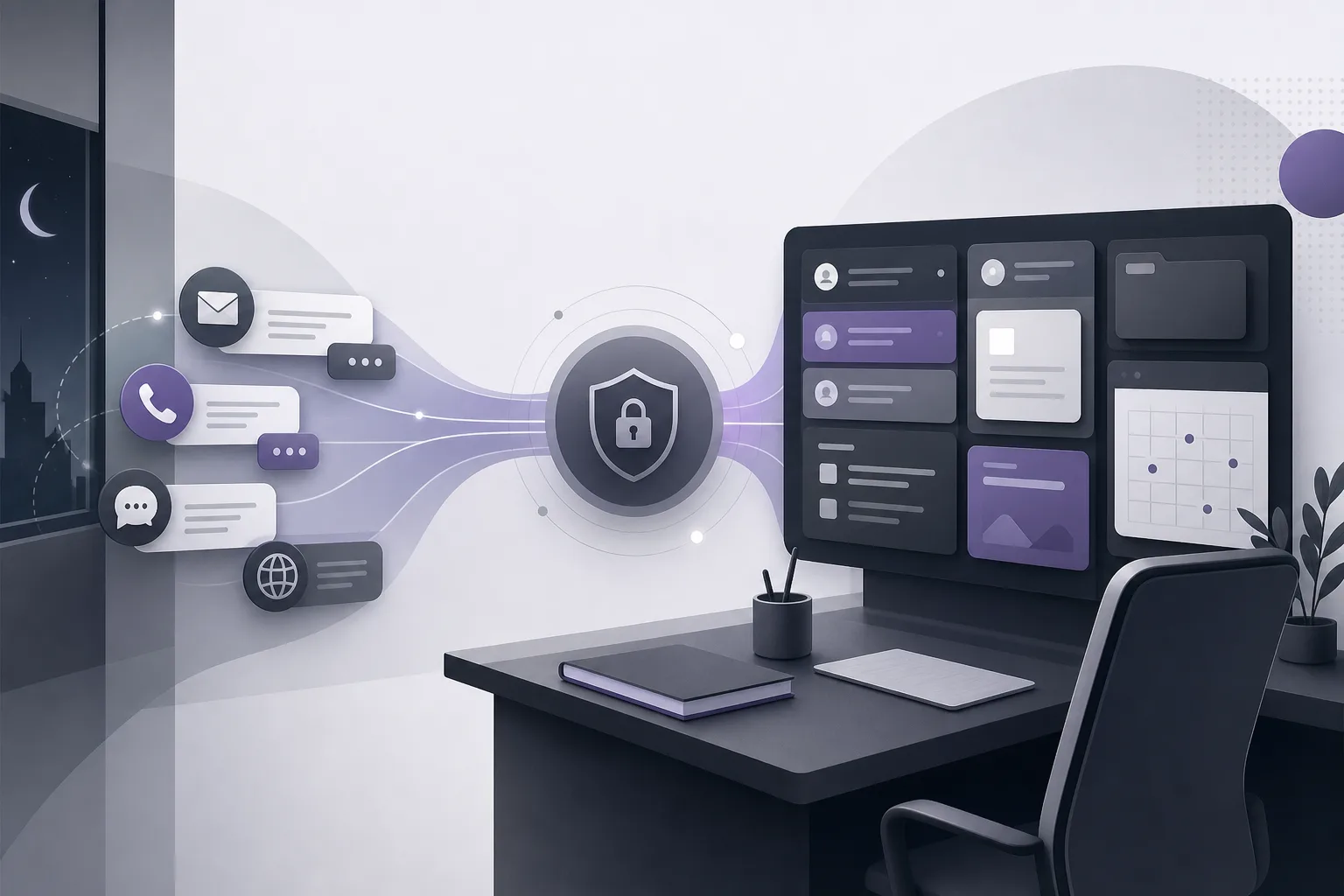
When enabled and configured for the relevant channel, the communication assistant can help receive client inquiries, handle frequently asked questions, and follow the conversation context. This gives the office a practical starting point: the message, the available conversation history, and the client record within the office workspace.
The feature should not be treated as a final, automatic assignment of the inquiry to every applicable case. Staff can use the available context to identify possible matters for review, then confirm or correct the connection based on the information and permissions available to them.
2. Review the relevant case files in one workspace
Once the message appears to cover more than one matter, the team can review the potentially relevant case files within the same OrderTech Legal workspace. Depending on the office setup and user permissions, this workspace includes the information used to manage clients, cases, documents, appointments, and accounts.
The operational benefit is less fragmentation while the team builds an initial picture of the inquiry. A staff member can separate the message into points associated with each matter and route the resulting review to the lawyer or authorized person. Determining whether a particular document, appointment, or instruction applies to one case or another remains a human decision based on the file contents and the office’s process.
3. Use the office assistant to organize the review
The office assistant helps with file summaries, draft preparation, and research in the legal library, subject to the version’s configuration and service connections. For a multi-file inquiry, a summary can help identify the points the lawyer should check in each case. It should not replace review of the underlying records or documents.
A draft can also provide a structured starting point by separating the response into matter-specific sections. The lawyer reviews the output and confirms the proposed actions before the office relies on it. An AI-generated draft should not be sent or adopted simply because it is available.
4. Keep human intervention in the response path
The communication assistant supports human intervention, depending on the channel configuration and activation. This matters when the client’s reference is ambiguous, when several files may apply, or when the available information is not sufficient for a responsible response. A staff member or lawyer can continue the conversation, ask the client to clarify the matter, or direct the inquiry to the appropriate person.
The purpose is to support coordination, not replace professional judgment. OrderTech Legal can help assemble and organize context, while the authorized team remains responsible for selecting the appropriate response and confirming its accuracy.
A practical workflow before responding
- Receive the message: review the inquiry and the available conversation context through the enabled channel.
- Identify references: note the case descriptions, documents, appointments, or topics mentioned, without assuming that every reference is conclusive.
- Review the client record: compare the inquiry with the client information and potentially relevant case files in the workspace.
- Check documents and appointments: review the items needed for each matter according to the user’s permissions, keeping the files distinct.
- Use the assistant when appropriate: ask the office assistant to summarize materials or prepare an organizational draft if the service is available and connected.
- Intervene or clarify: if the connection remains uncertain, have a staff member or lawyer intervene or ask the client which matter they mean.
- Review and respond: the lawyer reviews the output and confirms the proposed next step before a response is sent.
Hypothetical example
This is a hypothetical example, not a customer case study. A client sends one message asking about an appointment in one matter, referring to a document sent about another matter, and requesting to know what happens next. The staff member reviews the conversation context and client record in OrderTech Legal, then identifies two possible case files instead of treating the message as if it concerned a single file.
The staff member reviews the appointments and documents associated with each matter, subject to the relevant permissions, and separates the inquiry into two sets of points. The office assistant may be used to summarize the materials that require lawyer review, and the result is then presented to the lawyer. If it is unclear which appointment the client means, the staff member intervenes through the configured channel and asks for clarification before preparing the response. The lawyer reviews the draft and confirms whether it is suitable to send. This example illustrates context coordination; it does not assume that the system made a legal decision or connected the files without human verification.
Benefits and limitations to manage
Benefits
- Client, case, document, appointment, and account management are brought together in one office workspace.
- Conversation context can be considered alongside the client record and multiple case files.
- Summaries and drafts can help the team organize what the lawyer needs to review.
- Human intervention remains available when the inquiry is unclear or needs a more specific response.
- Each office has its own version with its own identity, accounts, permissions, location, and application connected to its own interface.
Limitations
- Assistant availability depends on the office version, service connections, and channel activation.
- The usefulness of the workflow depends on the information available and the permissions assigned to each user.
- An ambiguous inquiry may require a clarification request before any substantive response is prepared.
- Summaries and drafts do not replace the lawyer’s review of the output or confirmation of proposed actions.
- The platform should not be treated as a substitute for the lawyer’s judgment or decision.
Frequently asked questions
Does OrderTech Legal automatically connect a message to every case belonging to the client?
OrderTech Legal helps the office bring the client record, case files, and conversation context together in one workspace. The final connection should still be verified. It depends on the configuration, permissions, available information, and any necessary human intervention.
Can the communication assistant provide a final legal response?
The communication assistant helps receive inquiries, address frequently asked questions, and follow conversation context, with human intervention available according to the setup. It does not replace lawyer review or the lawyer’s decision, and a final response should not be adopted without appropriate review.
What is the office assistant’s role in a multi-file inquiry?
It can help summarize files, prepare drafts, and search the legal library when those services are available and connected. The lawyer reviews the output and confirms the proposed actions before it is used.
What if the office cannot tell which case the client means?
The staff member or lawyer can review the available context and files, then intervene and ask the client to clarify. It is better to pause a definitive response until the relevant matter or matters are clear.
Conclusion
OrderTech Legal addresses fragmented context by bringing client, case, document, appointment, and account management together with the conversation context in the office workspace. When the relevant services are enabled, the communication assistant and office assistant can support intake, summaries, and draft preparation, while permissions, human intervention, and lawyer review remain essential. If your office needs a more organized way to examine inquiries that span multiple matters before responding, explore OrderTech Legal and consider how its workspace can be configured around your office’s workflow.
Platform feature references
- OrderTech Legal — إدارة المكتب / Office management — Accessed 2026-10-08
- OrderTech Legal — المساعد الذكي / AI assistance — Accessed 2026-10-08