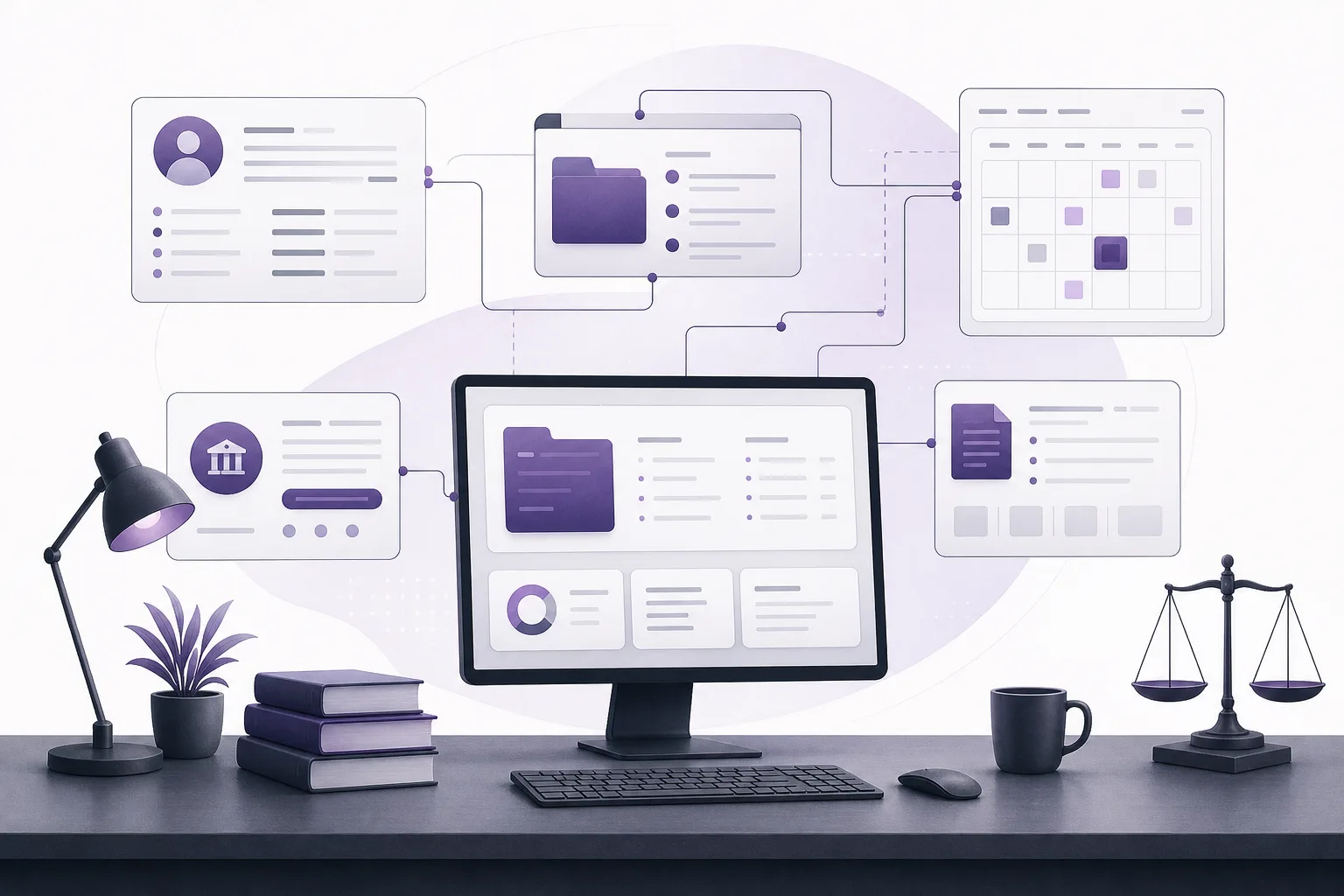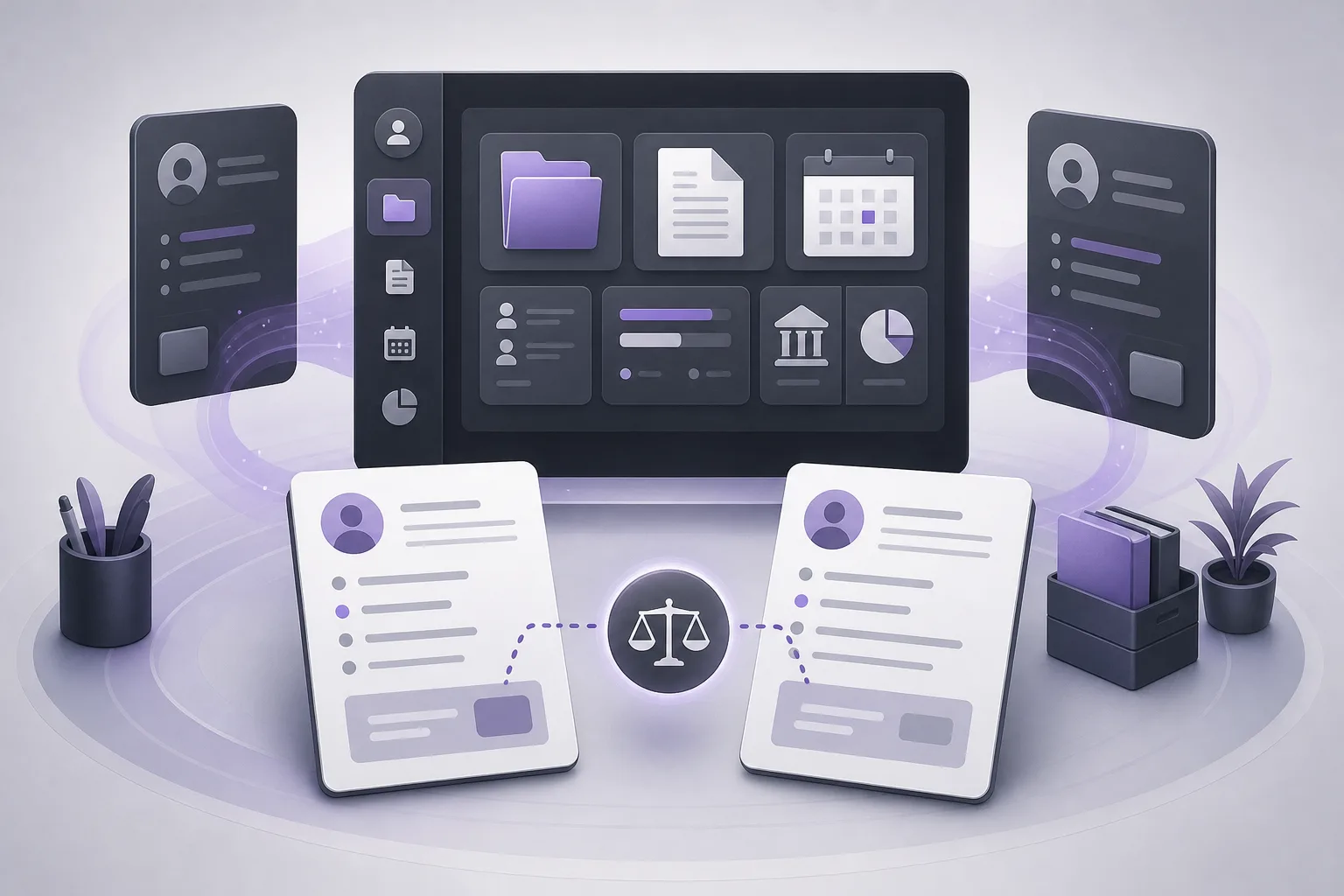

For an office coordinator, the first challenge of the day is often not the appointments themselves, but the context behind them. Who is each appointment for? Which case or client file is connected to it? Are there documents or account-related items that should be reviewed before the meeting? When these details are spread across separate records, preparing a useful daily worklist can become a manual exercise. This guide explains how OrderTech Legal can help an office coordinator review the day’s appointments, related case files, documents, and accounts from one workspace, without suggesting that the platform automatically creates a finished list or replaces professional review.
The daily preparation problem
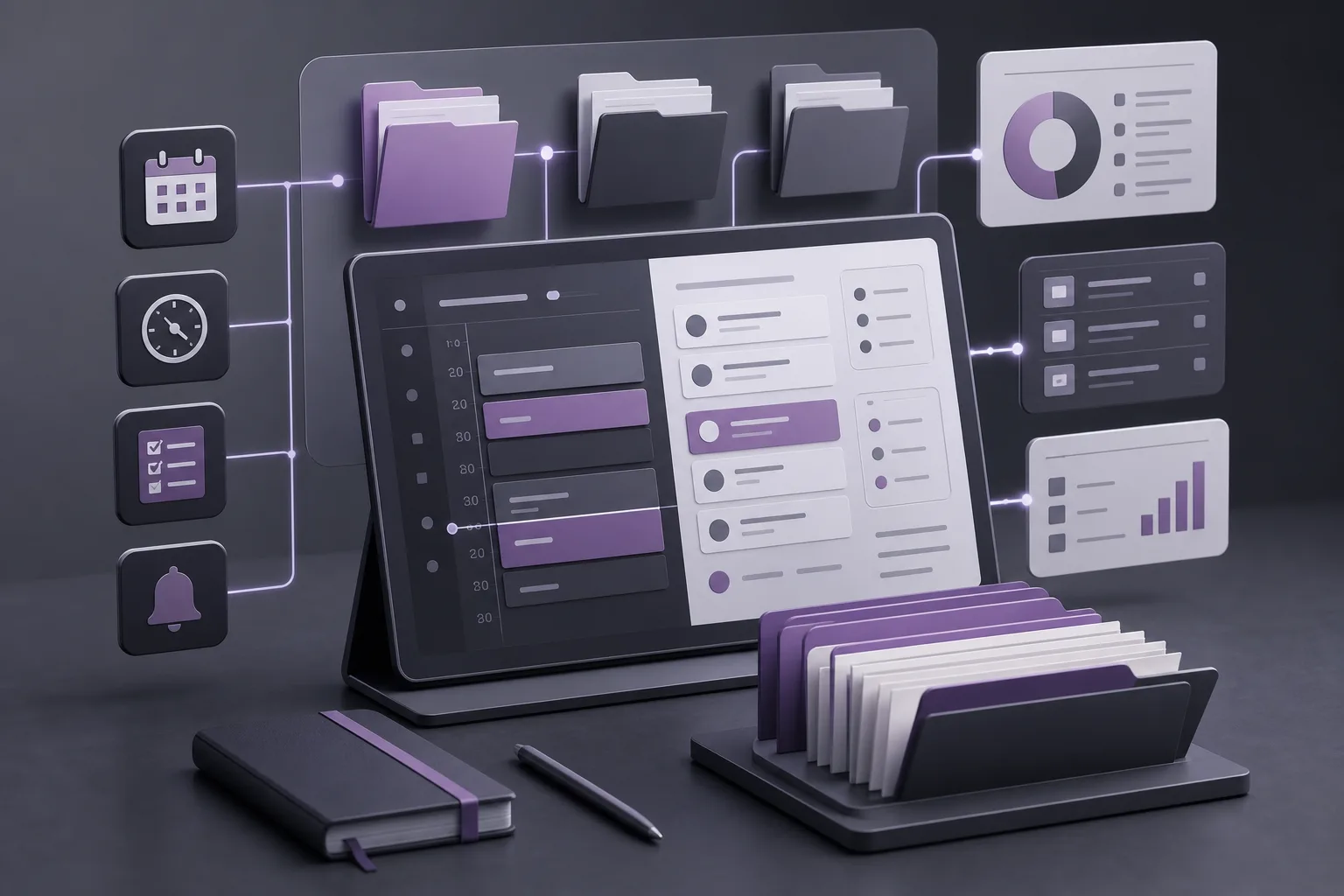
An appointment schedule provides times and entries, but it may not provide the operational context an office needs before the day begins. A coordinator may need to move from an appointment to the relevant client or case file, check the available documents, and review account information that is visible under the coordinator’s permissions. Searching for each element separately can make it harder to see what needs attention.
The useful idea is not to assume that a system-generated checklist exists. Instead, the office can use a shared workspace to review the information around each appointment and then prepare its own worklist. The coordinator organizes the review, while the lawyer or authorized person confirms professional actions and priorities.
How OrderTech Legal brings the review together
OrderTech Legal brings case and client file management, document management, appointments, and accounts together in a workspace for the office. This gives the coordinator a central place to move from an appointment to the records associated with it, subject to the office’s setup and user permissions.
1. Start with the day’s appointments
The coordinator can begin in the office’s appointment management area and identify the entries that require preparation. For each appointment, the review may involve confirming the associated client or case and noting what needs attention. The platform provides a starting point for review; it does not decide priorities or determine the required professional action simply because an appointment is listed.
- Identify the appointments that need preparation before the day starts.
- Check whether each appointment is connected to the appropriate client or case record.
- Record items that require human confirmation instead of treating them as complete.
2. Open the related case or client file
Once an appointment is identified, the coordinator can review the related case or client file within the workspace. This helps place the appointment in an administrative context: which file should be opened, and which information may be relevant to the office’s preparation process? The review should remain within the coordinator’s assigned permissions.
The way records are organized can depend on the office’s version and configuration. A coordinator should not assume that every appointment is automatically linked to a complete file or that every user sees the same information. If a link is missing or unclear, the appropriate next step is to verify the setup or ask the authorized person to intervene.
3. Review the available documents
Document management can help the coordinator check documents associated with the relevant file, to the extent that those documents have been entered and made available. This can support a preparation note such as “document available,” “document requires confirmation,” or “follow-up needed.” It does not establish that a lawyer has reviewed a document or approved an action.
- Check the documents available under the coordinator’s permissions.
- Distinguish between a document that is present and an item that still needs confirmation.
- Do not treat the presence of a document as proof that it has been professionally reviewed.
Where the office has enabled the office assistant and connected the relevant services, it may help summarize files, draft text, or search the legal library. These capabilities are support functions. The lawyer reviews the output and confirms proposed actions. Availability depends on the office version, service connections, and activation settings.
4. Review related accounts
Accounts are also part of the information OrderTech Legal brings into the office workspace. A coordinator may review the account-related information available to them when preparing the appointment review and note whether an item needs the team’s attention under the office’s procedures.
This review should remain factual and within the system’s available information. A coordinator should not infer a result that is not recorded or make a decision reserved for an authorized professional. If an account detail is not visible, that may reflect configuration or permissions rather than the real-world status of the matter.
A practical workflow for preparing the worklist
An office can adapt the following sequence to its own process:
- Review appointments: Begin with the day’s schedule and identify entries that need preparation.
- Check the record connection: Open the related case or client file and verify that the connection is correct.
- Review documents: Note what is available and what requires confirmation or follow-up.
- Review accounts: Check the account-related items visible under the office’s permissions and procedures.
- Prepare a human-reviewed list: Turn the findings into a worklist selected by the coordinator, rather than assuming the platform generated one automatically.
- Escalate unclear items: Send questions or incomplete information to the lawyer or authorized office lead.
This approach makes the workspace a central review point while keeping prioritization, professional judgment, and confirmation with the office team.
A hypothetical example
Imagine that a coordinator begins the morning with three appointments. The coordinator reviews the schedule, opens the file connected to the first appointment, and checks the documents and account information visible in the workspace. The appointment appears to need confirmation of its connection to the correct client file. Rather than marking the appointment as ready automatically, the coordinator adds a verification item to the worklist and sends it to the authorized person.
For the second appointment, the related documents are present, but the coordinator does not assume that the lawyer has reviewed them. The coordinator records a request for confirmation. For the third appointment, some information is not visible under the current permissions, so the coordinator records a follow-up rather than drawing a conclusion. This is a hypothetical use example, not a customer story or a guaranteed outcome.
Benefits and limits
Potential benefits for the office
- Less movement between separate places when reviewing an appointment and its context.
- A broader administrative view of related files, documents, and accounts.
- An easier way to identify items that need confirmation before appointments begin.
- Better coordination between the office coordinator and lawyer while leaving decisions with the appropriate person.
What the office should not assume
- OrderTech Legal does not necessarily create an automatic daily worklist merely because appointments exist.
- Every user may not see the same files, documents, or account information; access depends on permissions and configuration.
- Summaries, drafts, or legal-library searches are not final professional outputs.
- The assistant does not replace the lawyer’s review or confirmation of proposed actions.
- Some assistance depends on the office version, service connections, and activation settings.
Frequently asked questions
Does OrderTech Legal automatically create the daily worklist?
Not necessarily. It provides one workspace for reviewing appointments, files, documents, and accounts, but the coordinator decides what belongs on the office’s worklist and verifies items with the team.
Will every staff member see the same records?
That should not be assumed. Each office has its own accounts, permissions, identity, and configuration, and visibility depends on the access assigned to the user.
Can the office assistant decide what should happen with an appointment?
When available and enabled, the office assistant may help summarize files, draft text, or search the legal library. The lawyer must review the output and confirm proposed actions.
What should the coordinator do if a file or document is not connected to an appointment?
Check the record connection, configuration, and permissions, then ask the authorized person to intervene. A missing item should not be treated as proof of its real-world status.
Conclusion
OrderTech Legal can give an office coordinator a central place to review appointments alongside related case and client files, documents, and accounts. Its practical value is not an assumed automatic checklist, but a more structured way to inspect the information before the day’s appointments begin. Because service setup, permissions, and human intervention remain essential, offices can explore the platform and assess how its workspace fits their daily preparation process.
Platform feature references
- OrderTech Legal — إدارة المكتب / Office management — Accessed 2026-10-04
- OrderTech Legal — المساعد الذكي / AI assistance — Accessed 2026-10-04