
When a case task moves from a lawyer to legal staff, or from one team member to another, important context can become scattered across separate messages, documents, and calendar references. The practical question is: How can OrderTech Legal support case handoffs between lawyers and legal staff?
OrderTech Legal provides a workspace for the firm that brings together case and client files, documents, appointments, and accounts. It does not make decisions on behalf of the lawyer. Instead, it gives the team a shared place to return to when work is handed over, subject to the firm’s configuration and each user’s permissions.
Why can a handoff weaken case management?

A handoff involves more than saying, “Please take care of this file.” The receiving team member may need to understand the current status, what has already been completed, what remains outstanding, and where the relevant documents or appointments are located. When that information is distributed across different channels, staff may need to repeat questions or search for the latest version of a document.
The challenge also appears when responsibility for one step changes. A lawyer may review the case and identify the next action, while legal staff organize documents, follow an appointment, or update an administrative item. Each transition creates a need for clear, accessible context rather than relying on informal messages or memory.
How OrderTech Legal supports case handoffs
A workspace for connected case information
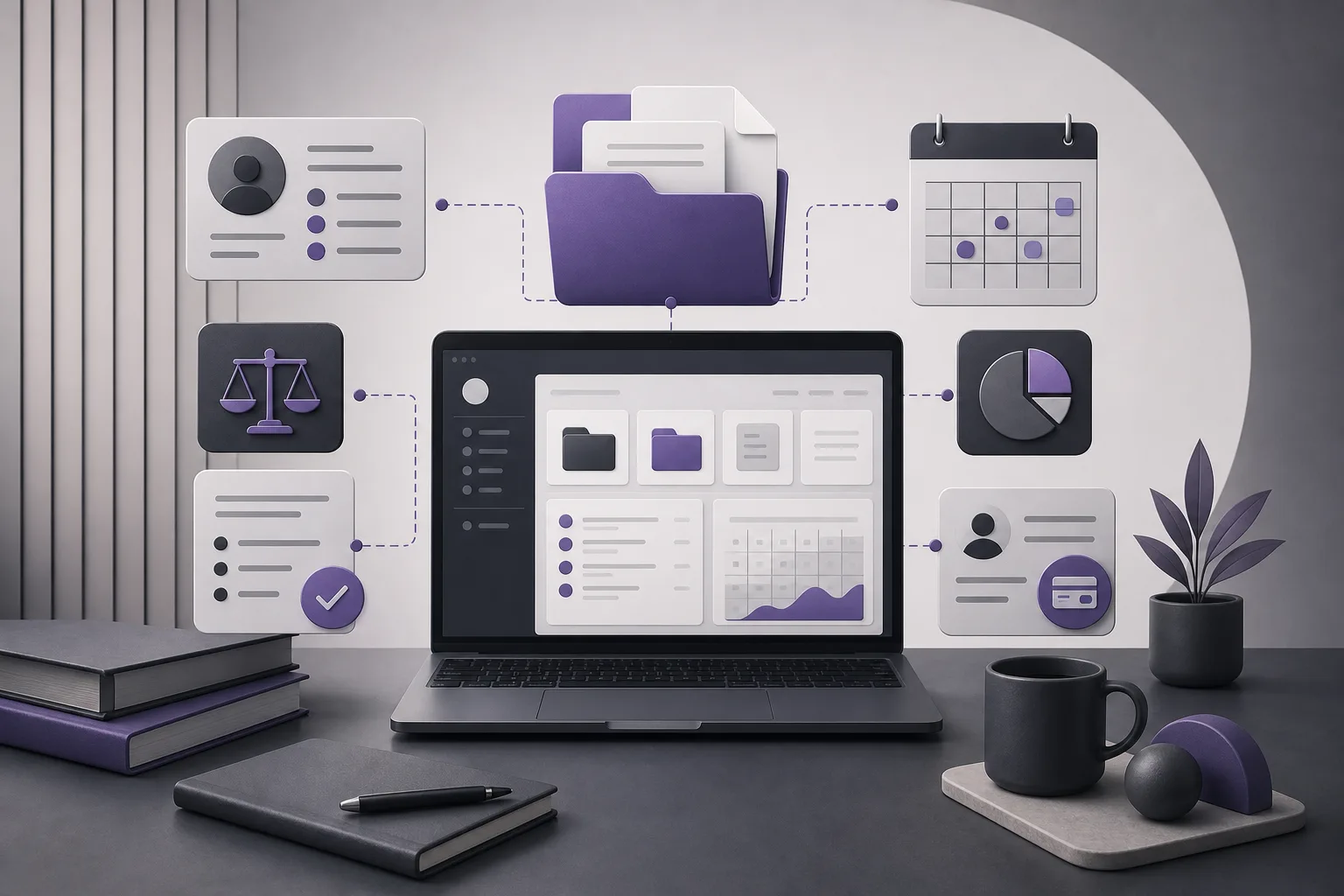
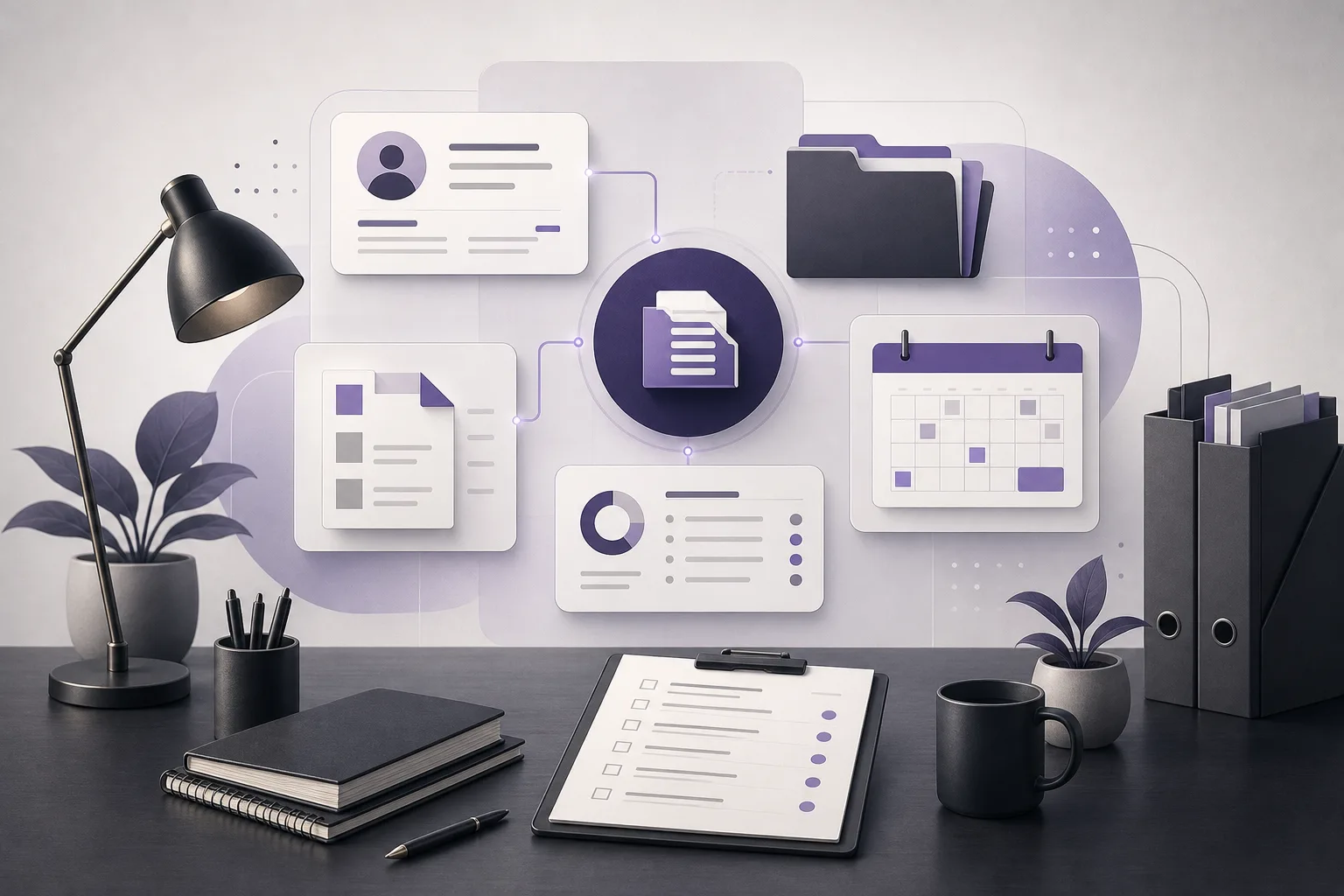
OrderTech Legal brings case files, client files, documents, appointments, and accounts into one firm workspace. This allows the team to work with related elements in one environment instead of reconstructing the case from disconnected sources.
When a task is handed over, the receiving user can return to the relevant information available within the workspace and their assigned access. This can reduce the need to resend the entire background each time. The result still depends on how consistently the firm organizes and updates its information.
Permissions that reflect user roles
Each firm has its own version of the platform, with its own identity, accounts, permissions, website, and application connected to its own interface. Permissions can be used to organize access according to a user’s role. This matters during a handoff because a lawyer and a staff member may work within the same firm workspace without needing the same scope or type of access.
The firm can configure access for its users and roles. However, the firm remains responsible for setting and reviewing permissions. A shared workspace cannot provide the intended benefit if access settings are unsuitable or required services are not enabled. What each user can see or use depends on the firm’s configuration and permissions.
Keeping a task connected to the case context
When documents, appointments, client information, and case information are available in one workspace, the handoff can be treated as a step within a known context rather than as a standalone instruction. A lawyer may review the case, and legal staff may then handle an administrative action connected to documents, appointments, or accounts while referring back to the same workspace.
This structure does not by itself confirm that every task is complete or every piece of information is correct. It does, however, provide a shared starting point that can reduce fragmentation when the team keeps its information current and clearly identifies what requires follow-up.
The role of OrderTech Legal assistants
Communication assistant
When the relevant channel is enabled and configured, the communication assistant can help receive client inquiries, handle frequently asked questions, and follow the context of a conversation, with the possibility of human intervention. This may help a staff member understand what has already been discussed before continuing the next step.
The scope of this support depends on the channel’s configuration and activation. The firm should not assume that every conversation or inquiry is handled automatically. Human intervention remains available according to the setup and is important when a conversation needs review or direction from the team.
Office assistant
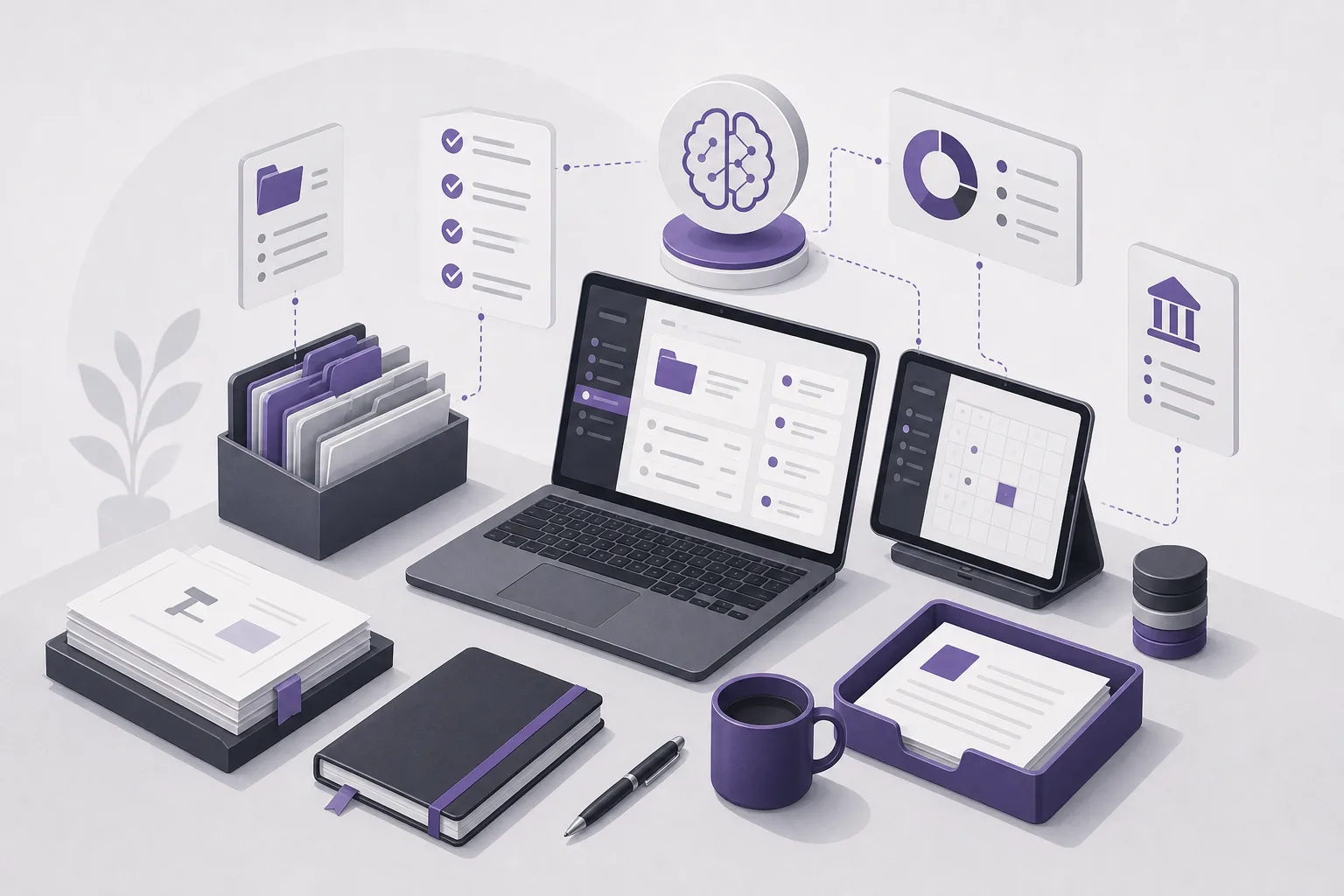
The office assistant can help summarize files, draft documents, and search the legal library. A file summary may offer a useful starting point when a matter is handed to someone who has not previously worked on it. A draft can also support an initial preparation step for review.
The lawyer reviews the outputs and confirms the proposed actions. The assistant supports the lawyer; it does not replace the lawyer’s review or decision. Availability also depends on the firm version’s configuration and connected services, so the team should confirm that the feature is enabled before making it part of a handoff process.
A hypothetical handoff example
The following is a hypothetical example, not a report of a real client experience. A lawyer reviews a case and asks legal staff to organize documents connected to an upcoming appointment and follow related administrative information. Rather than sending several messages with separate copies, the lawyer starts from the shared workspace, reviews the available case elements, and identifies the next task for the staff member.
The staff member enters the workspace according to their permissions and refers to the relevant case and client files, documents, appointments, and accounts. If the office assistant is available and enabled, it may be used to summarize the file or prepare an initial draft. The lawyer then reviews the output and confirms the appropriate action. If a client inquiry arrives through an enabled channel, the communication assistant may help maintain the conversation context, with the option for a team member to intervene.
In this scenario, the platform does not determine the legal strategy or decide what the lawyer should do. Its primary value is providing a common working environment for each team member, with access organized through permissions and decisions kept with the responsible professional.
Practical steps for clearer handoffs
- Define the handoff: State what is moving to the staff member or next team member, such as organizing documents, following an appointment, or updating an administrative item.
- Use the case workspace: Connect the follow-up to the case and client files, documents, appointments, and accounts instead of relying on a separate thread of information.
- Check permissions: Confirm that the user can access what is needed for the role and that the firm’s settings fit the work.
- Use an assistant when available: Treat summaries, drafts, or legal-library searches as starting points, not substitutes for review.
- Confirm the next action: Make clear what has been completed, what remains open, and who reviews the result.
Benefits and limits to keep in mind
The main benefit is reducing information fragmentation through a workspace that brings together the firm’s core management elements. Permissions can help organize access by role, while the assistants may support summarization, draft preparation, or communication context when they are configured and enabled.
At the same time, OrderTech Legal does not replace firm organization or lawyer review. Handoff quality depends on complete information, appropriate permissions, enabled and connected services, and consistent use of the shared workspace. Assistant outputs should not be treated as final decisions; the lawyer reviews them and confirms proposed actions.
Frequently asked questions
Can a lawyer and legal staff work in the same firm workspace?
Yes. The platform brings core office-management elements into one workspace, while the information each user can see or use depends on the firm’s configuration and permissions.
Does the platform completely prevent lost context?
It can help reduce fragmentation by bringing files, documents, appointments, and other elements together, but it cannot by itself guarantee complete information or a well-executed handoff. Team practices, current data, and appropriate permissions remain essential.
Does the office assistant make decisions?
No. It helps with file summaries, drafts, and legal-library searches. The lawyer reviews the outputs and confirms the proposed actions.
Does the communication assistant handle every client inquiry?
That depends on the channel’s setup and activation. It can help with inquiries, frequently asked questions, and conversation context, with human intervention available according to the configuration.
Conclusion
OrderTech Legal can give lawyers and legal staff a shared starting point for case handoffs by bringing together case and client files, documents, appointments, and accounts and organizing access through permissions. Its value still depends on firm configuration, consistent team use, and human review. Explore OrderTech Legal to see how its workspace and communication and office assistants may support your firm’s handoff process.
Platform feature references
- OrderTech Legal — إدارة المكتب / Office management — Accessed 2026-09-12
- OrderTech Legal — المساعد الذكي / AI assistance — Accessed 2026-09-12