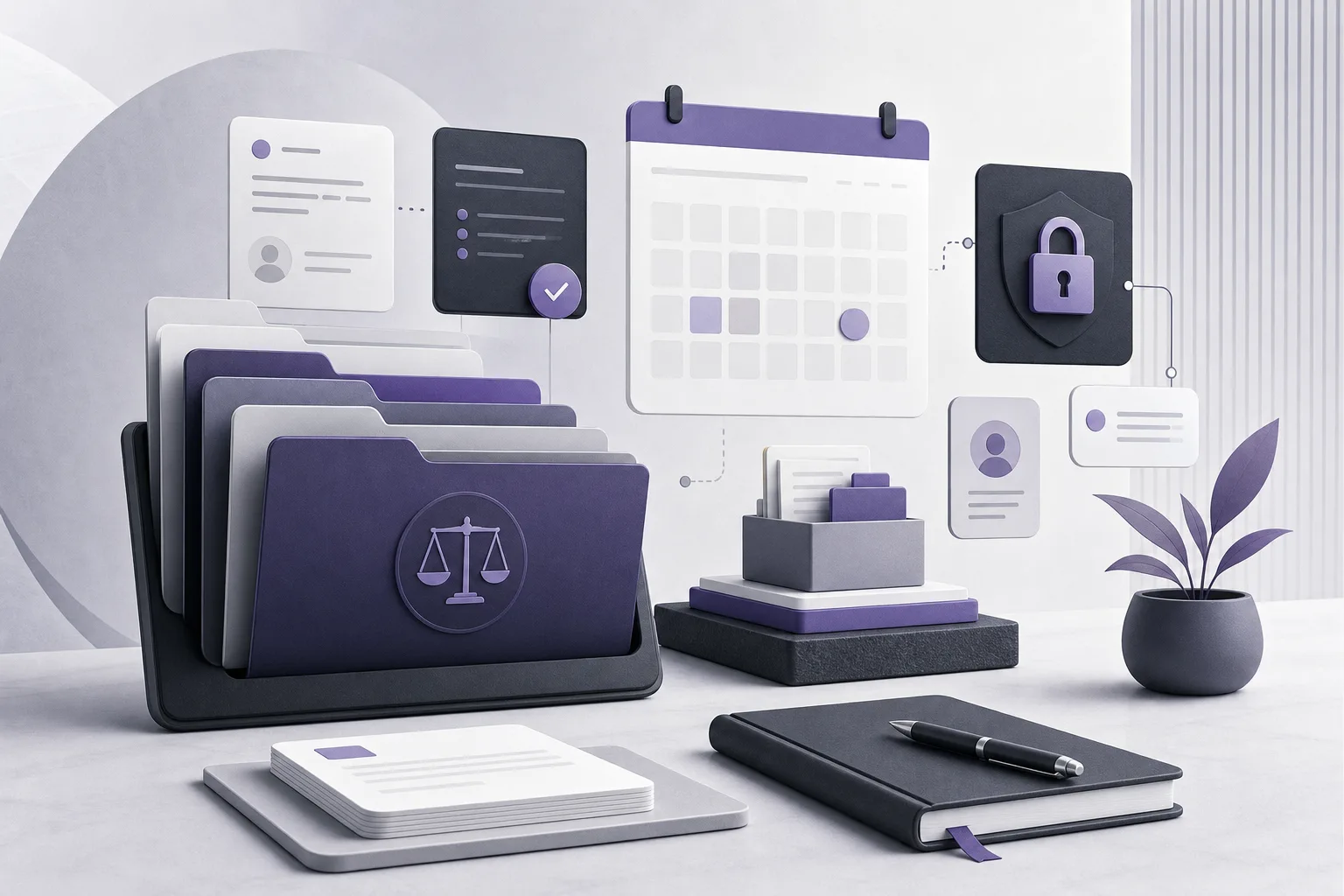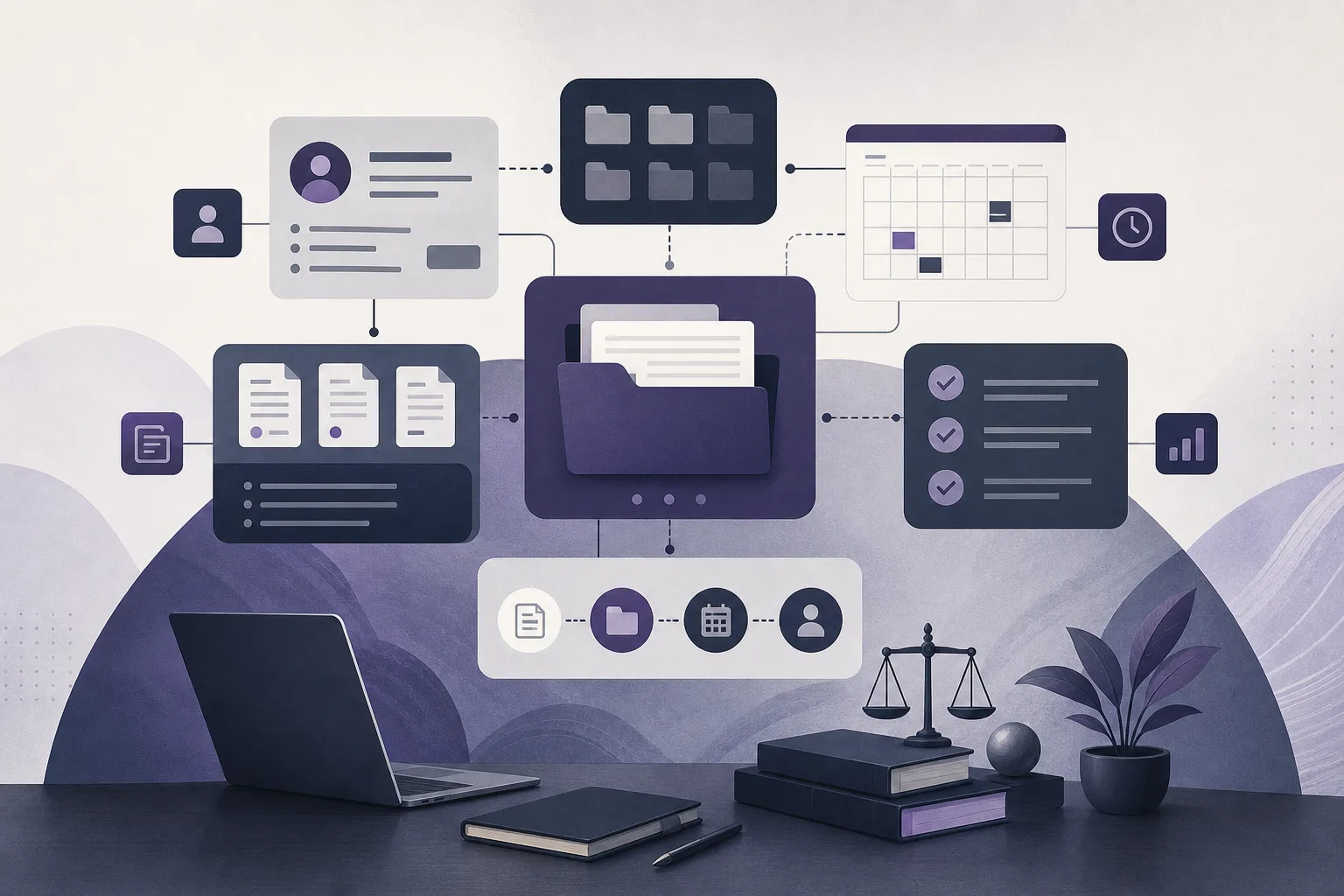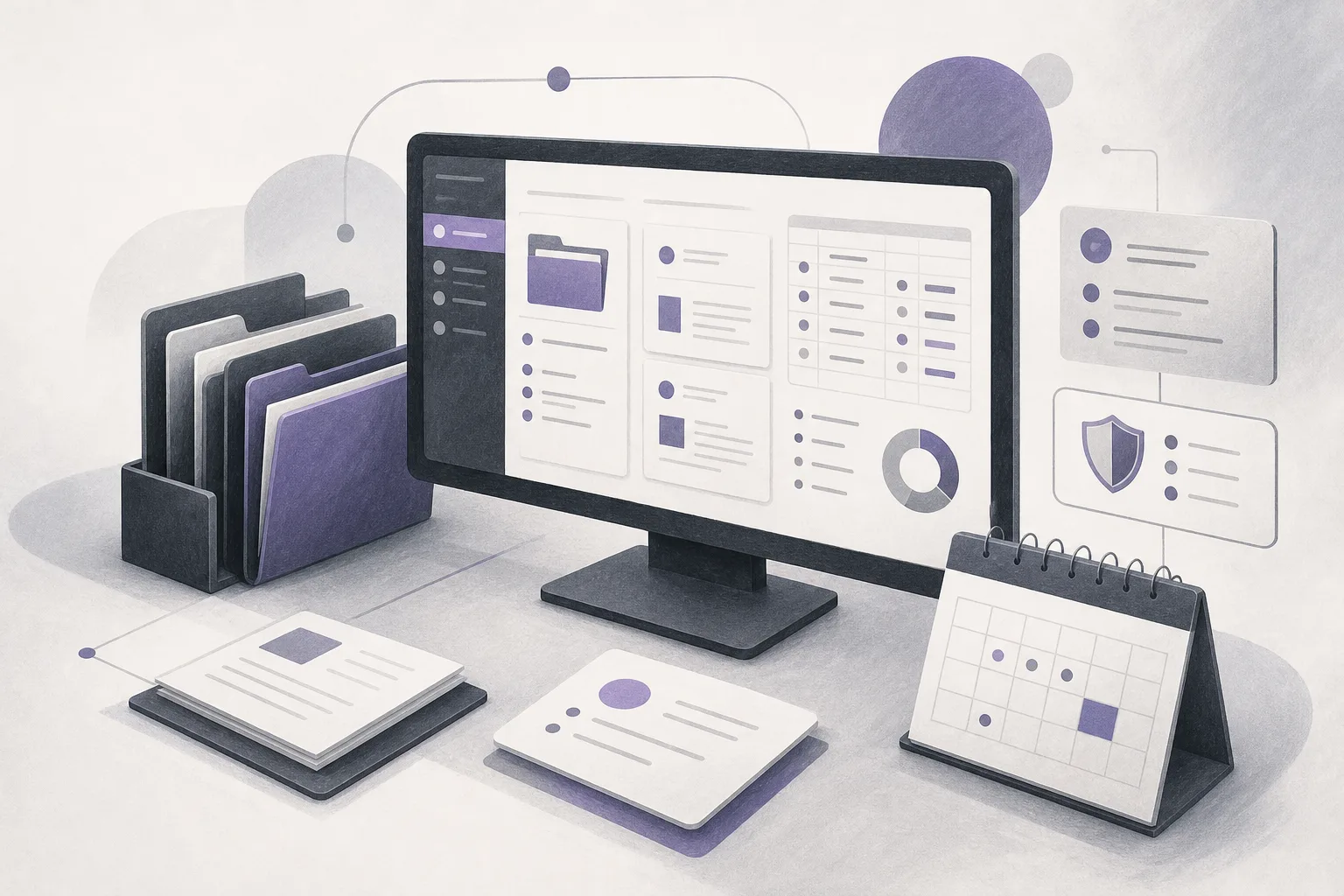

A new employee may understand individual administrative tasks yet still struggle to see how a client, a case file, documents, appointments, and accounts fit together. When training instructions are spread across different tools or disconnected screens, the employee can end up memorizing locations instead of learning the office’s workflow. OrderTech Legal can help a law office manager train a new employee to manage a case file from one workspace.
OrderTech Legal brings case files, clients, documents, appointments, and accounts into a workspace for the office. This gives the manager a practical setting in which to explain how the parts of a file relate to one another and how the employee should move through the work. The platform supports the employee; it does not replace the lawyer’s review or the office’s decisions. What the employee can view or do depends on the office’s accounts, permissions, version settings, and connected services.
Why new-employee training becomes fragmented
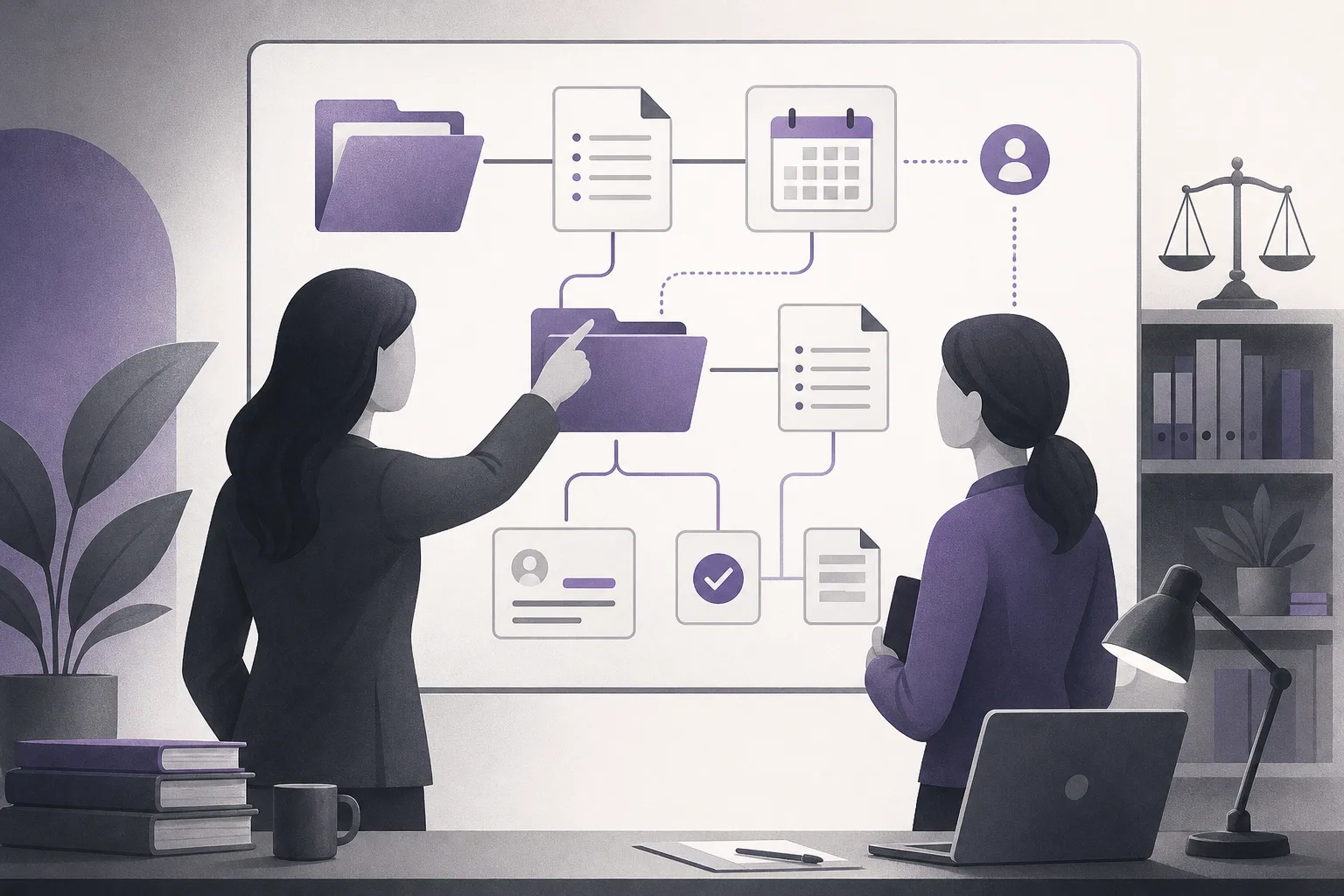
Traditional onboarding often explains client information, documents, appointments, and accounts as separate subjects. Each explanation may be accurate, but the employee may still not know how to apply them together when handling a case-related task.
Common practical questions include: Where should the employee start? Which client and case are connected? Where is the relevant document? Which appointment should be checked? What information is outside the employee’s role? A shared workspace helps the manager answer these questions in the context of the office’s work, while the manager remains responsible for deciding what the employee should access and review.
How an office manager can use OrderTech Legal during onboarding
1. Start with the complete workflow
Rather than beginning with isolated instructions, the manager can introduce the case file as the point where the office’s daily work comes together. The employee can learn that managing a file may involve client information, documents, appointments, and accounts, depending on the role assigned to them and the office’s process.
The manager can then move through the workspace and show these areas in context. This helps the employee understand why each area matters and when to refer to it, rather than simply memorizing where it is located. It also allows the manager to identify questions before the employee begins handling work more independently.
2. Explain the connection between a case and a client
Many tasks begin with identifying the correct case and the client connected to it. In the same workspace, the manager can demonstrate how the office organizes case files and clients, then explain what the employee should verify before proceeding to the next task.
This does not mean that every employee automatically receives access to every piece of information. Each office has an independent OrderTech Legal version with its own identity, accounts, permissions, website, and application connected to its own interface. Training should therefore reflect the office’s configuration and make the employee’s access boundaries clear from the beginning.
3. Put documents in the context of the work
Document training is more useful when the employee understands how a document relates to the case and the task at hand. The manager can use the OrderTech Legal workspace to explain where documents are managed and how the employee should locate material they are authorized to review.
The employee should also learn the difference between locating a document and approving its content or acting on it. If a summary or draft is needed, the manager can explain the office’s process while emphasizing that the output must be reviewed by the lawyer or authorized person before it is adopted or used.
4. Explain appointments and accounts
A case workflow is not complete without showing how appointments and accounts may relate to it, within the employee’s permission scope. The manager can explain how the employee reviews relevant information in the workspace and when the employee should stop and ask for direction instead of changing or confirming something outside the assigned role.
This encourages the employee to view a task in context: the case, the client, documents, appointments, and accounts. It does not mean that every employee should see every data area or that every office follows the same process. Permissions and the office version’s configuration determine the practical scope of use.
5. Use the office assistant when it is available
Depending on the version’s configuration and connected services, the office assistant can help summarize files, draft text, and search the legal library. During onboarding, the manager may demonstrate how to request help with a training task and how to compare the result with the information in the file before sending it for review.
The assistant is a support tool, not a replacement for understanding the file or exercising professional judgment. The lawyer reviews the outputs and confirms proposed actions. Availability and behavior depend on the office version and service connections, so the manager should not assume that every office has every assistant capability enabled.
6. Clarify the role of the communication assistant
If the relevant channel has been configured and activated, the communication assistant can help receive client inquiries, answer frequently asked questions, and maintain conversation context, with the option for human intervention. The manager can explain how this communication fits into file follow-up and when a member of the office should intervene.
This depends on the channel’s setup and activation. It does not give the assistant authority to make decisions, nor does it make human review unnecessary. Effective training distinguishes between maintaining conversation context and approving a response or action that may follow from it.
A hypothetical training example
Suppose an office manager is onboarding an employee to a task connected to an existing case file. The manager begins by showing the case file and related client in the OrderTech Legal workspace. The employee is then asked to identify the documents they are permitted to review. Next, the manager explains where to check the appointment connected to the task and which account information falls within the employee’s access.
For a later exercise, the manager asks the employee to prepare an initial summary of the available information using the office assistant, if that assistant is enabled and available in the office version. The employee compares the summary with the file material and submits it for review rather than treating it as final. The manager also explains that any proposed action must be confirmed by the lawyer or another authorized person.
This is a hypothetical example, not a report of a real client experience. Its purpose is to show how the office’s actual workspace can support onboarding while respecting permissions and internal procedures.
Benefits of one workspace for onboarding
- A connected view: The employee can see how cases, clients, documents, appointments, and accounts relate within the office’s work.
- Training in context: The manager can teach in the office’s workspace using information the employee is authorized to review.
- Clear review points: The employee learns when to ask the lawyer or manager before accepting a draft or proposed action.
- Role-based access: The office can define the employee’s scope through accounts, permissions, and version settings.
- Support for recurring tasks: When configured, the assistants can support summaries, drafts, legal-library searches, or inquiry follow-up under human supervision.
Important limitations to explain
A unified workspace does not make an employee ready to manage every part of a case without instruction or supervision. OrderTech Legal organizes the areas managed by the office, but the available information and actions depend on the version configuration, permissions, and connected services. Assistants also do not replace a lawyer’s review or the office’s decision-making. A summary, draft, response, or proposed action must be checked according to the assigned role.
The employee should not use another person’s account or bypass permissions to speed up training. A better approach is for the manager to explain what the employee can view, what the employee can do, and when to ask for help. If a service or communication channel is not activated in the office version, onboarding should not be based on an assumption that it is available.
Frequently asked questions
Can a new employee see every case file in the office?
Not necessarily. Access depends on the office’s accounts, permissions, and version configuration. The office manager or authorized administrator determines what the employee can view and handle.
Can OrderTech Legal be used to train an employee with the office’s actual records?
The manager can explain the workflow in the office workspace using information that falls within the employee’s authorized access. The office should follow its own procedures and avoid exposing information beyond the training role.
Can the employee rely on the office assistant for the final answer?
No. When available, the assistant can help summarize files, draft text, and search the legal library. The lawyer reviews the outputs and confirms proposed actions.
Does the communication assistant handle every client interaction?
It can help receive inquiries, answer frequently asked questions, and maintain conversation context when the channel is configured and activated, with the option for human intervention. It is not a substitute for the office’s follow-up or decision.
Do all offices have the same capabilities?
No. Each office has an independent version with its own identity, accounts, permissions, website, and application connected to its own interface. Assistant availability also depends on version configuration and service connections.
Conclusion
Training a new employee requires more than a list of instructions. It requires a clear view of how the parts of a case file fit into the office’s daily work. OrderTech Legal helps the manager present that view from a workspace that brings together case files, clients, documents, appointments, and accounts, while keeping permissions and human intervention in focus. Explore the platform to see how it may support your office’s organization and onboarding process, with professional review and decisions remaining with the authorized people.
Platform feature references
- OrderTech Legal — إدارة المكتب / Office management — Accessed 2026-10-10
- OrderTech Legal — المساعد الذكي / AI assistance — Accessed 2026-10-10