When a temporary employee joins a law office, the assignment is often narrow: organize documents for a particular matter, update administrative information, or follow a scheduled task. The challenge appears when access granted for that limited assignment becomes broader than the work requires. This leads to a practical management question: How can OrderTech Legal help a law office manager organize a temporary employee’s access to case files?
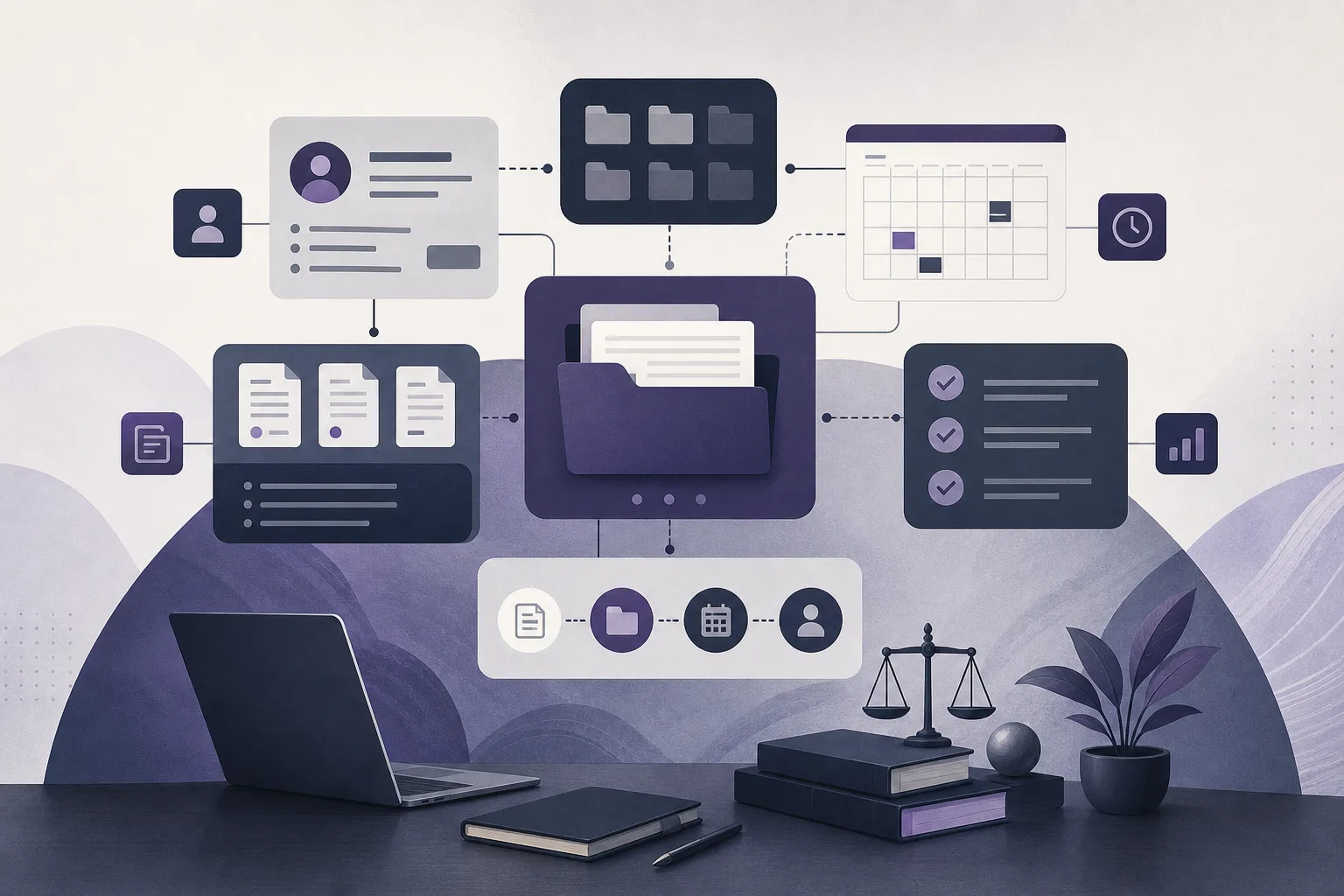
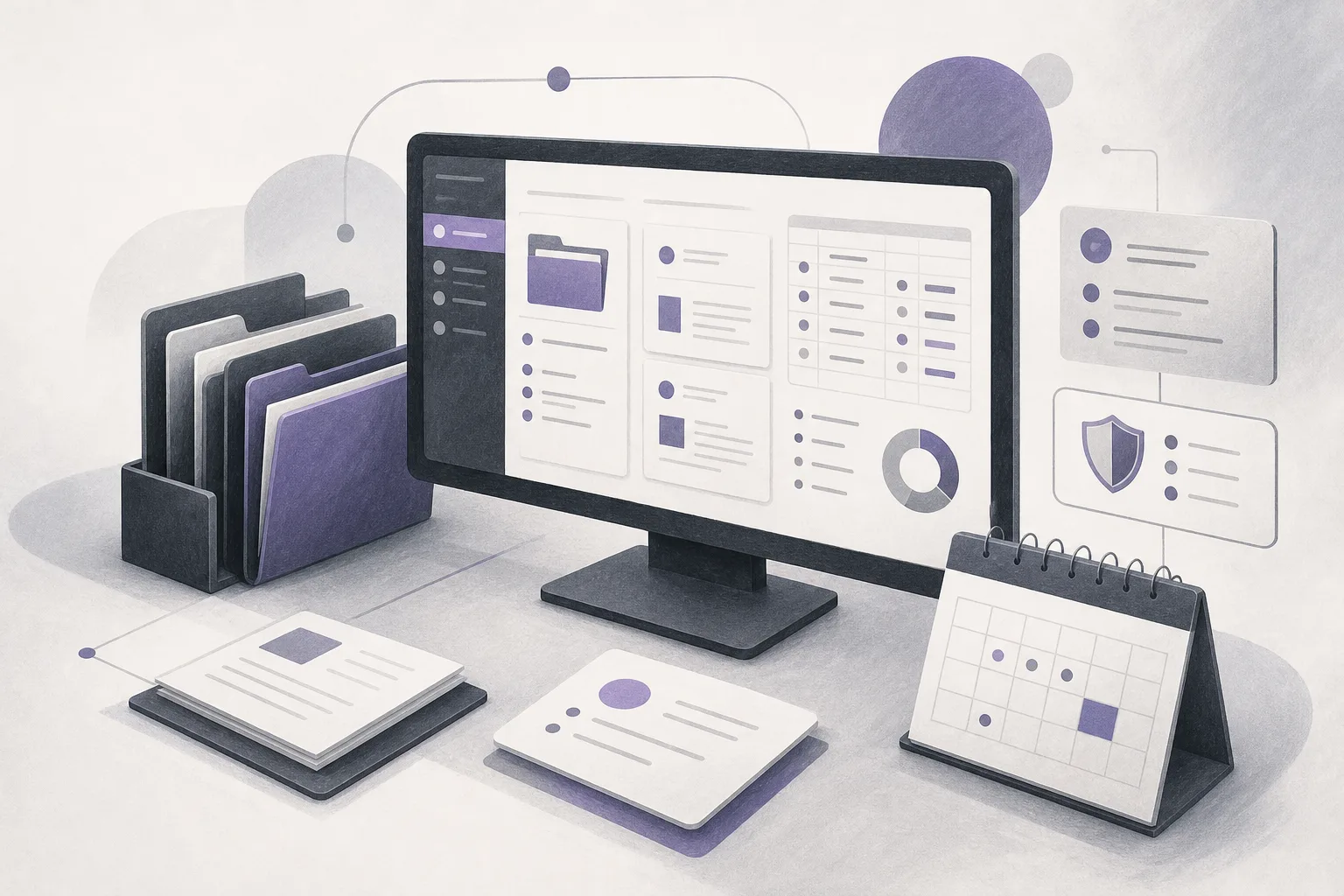
OrderTech Legal brings case and client file management, documents, appointments, and accounts together in one office workspace. Each office has an independent version with its own identity, accounts, permissions, website, and application connected to its own interface. This structure allows access to be considered as part of office workspace management rather than as an isolated technical step. It does not, however, mean that the system independently decides what an employee should see or automatically removes access when an assignment ends. Those outcomes depend on the office setup and human review by the office manager or responsible lawyer.
The access problem for a law office manager
A temporary employee may be useful for a defined task while still having no reason to access every case file, document, client record, appointment, or account area. Relying on verbal instructions or a shared account can also make it difficult to know which setup was approved or whether anyone reviewed it before work began.
The practical objective is not to promise a particular security result. It is to create a clear process: identify what the employee needs, review what the office version allows, check the setup before the assignment starts, and revisit it if the work changes. OrderTech Legal can support that review within the office workspace, subject to the permissions and services configured for that office.
How to use OrderTech Legal to organize access
1. Define the assignment before setting access
Start by describing the assignment in operational terms. Does the employee need to work on one case file or several? Is the task limited to organizing documents? Does it involve following an appointment or updating administrative information? The access conversation should begin with the work required, not with the broadest access that might be convenient.
Because OrderTech Legal brings case files, client information, documents, appointments, and accounts into one workspace, the manager can consider the assignment against the areas the employee may need to use. The manager can then identify any gap between the task and the proposed access before the employee begins.
2. Review the office account and permissions
Each office has its own OrderTech Legal version, identity, accounts, and permissions. The manager should therefore review the setup for that specific office rather than assume that another office uses the same arrangement. Availability may depend on the version’s configuration and on connected services, so the manager should confirm what is actually enabled in the office environment.
At this point, the manager can define the intended scope and present it to the responsible lawyer or the person authorized to approve it. Human review remains important because the system assists the lawyer and does not replace professional review or decision-making.
3. Match access to the files and services required
Once the assignment is clear, the manager considers which parts of the workspace are relevant: the case file or files, the documents needed for the task, appointments connected to the assignment, and any other information permitted by the office configuration. The objective is to avoid turning a limited administrative task into general office access simply because broader access is easier to set up.
If the employee needs to review or organize information, the manager should not assume that the employee also needs to perform other actions. If a connected service is required, the office should confirm that it is enabled and understand how it operates. Based on the available product information, OrderTech Legal should not be described as automatically applying every possible access distinction or removing permissions without review.
4. Record the manager’s decision before work begins
Before access is granted, the office can keep an internal record of the assignment, the approved scope, the expected duration, and the person who reviewed the setup. This is an office management practice, not a separate OrderTech Legal feature being claimed here. It helps the manager return to the decision and compare it with what was configured in the office version.
The manager should also review which account will be used and avoid relying on another person’s shared credentials. The temporary employee should understand the limits of the assignment, while the office retains responsibility for supervision and approval.
5. Review access during the assignment
Access review should not end when the account is first configured. The assignment may change, the employee may request an additional area, or the office may discover that a setting does not fit the actual workflow. The manager should revisit permissions when the task changes and determine whether an adjustment or other action is appropriate under the office setup.
The office should not assume that OrderTech Legal automatically withdraws access when a temporary assignment ends. The appropriate action depends on the office configuration and available services, so the manager’s joiner, change, and departure review should remain part of the process.
A hypothetical example
This is a hypothetical example, not a customer experience. Suppose a law office assigns a temporary employee to organize documents connected with two case files before an internal meeting. The office manager first defines the assignment, then reviews the relevant account and permissions in the office’s OrderTech Legal version. The manager compares the documents and files required with the available scope and asks the responsible lawyer to review the setup before work starts.
During the assignment, the employee needs to see an appointment connected with one of the two files, but has no reason to access the office’s appointments generally. The manager reviews that request and adjusts the setup if the office version provides an appropriate option, rather than expanding access without a defined need. When the work ends, the manager reviews the account and permissions and follows the office’s configured process. The example does not assume automatic withdrawal or a guaranteed security outcome; it illustrates the value of defining scope and keeping human review involved.
Limits to keep in mind
- Available functions depend on the office version’s configuration and connected services.
- Permissions do not replace the office’s internal process or review by the responsible lawyer and manager.
- The available information does not establish that the system automatically removes a temporary employee’s access when an assignment ends.
- The office should not assume that the platform will prevent every unintended use merely because permissions have been configured.
- The assistants support the lawyer and office team; they do not replace human review or decisions.
Frequently asked questions
Can OrderTech Legal create a custom permission for every temporary employee?
OrderTech Legal provides each office with an independent version containing its own accounts and permissions. The exact customization available depends on that version’s setup, so the manager should confirm the options that are actually available rather than assume an undocumented permission level.
Can the office give an employee access to only one case file?
The office should review that possibility against its own configuration and the assignment’s scope. We do not claim a specific level of file-by-file restriction here. The practical principle is to align access with the employee’s need and review the setup before the assignment begins.
Does the system automatically remove access after the assignment ends?
That should not be assumed. The office manager should review the account and permissions and take the appropriate action under the office version’s configuration and procedures.
Can the AI assistant decide permissions instead of the manager?
No. The assistant supports the lawyer and does not replace the lawyer’s review or decision. Availability also depends on the office setup and connected services.
Conclusion
OrderTech Legal helps a law office manager organize the access question by bringing case files, client management, documents, appointments, and accounts into an office workspace with office-specific accounts and permissions. The practical benefit comes from defining the temporary employee’s assignment, reviewing the setup, matching access to the task, revisiting changes, and avoiding assumptions about automatic withdrawal or a particular security result.
If your office is looking for a more consistent way to manage its workspace and review permissions around temporary assignments, explore OrderTech Legal and see how its office version can be configured around your workflow, while your team retains responsibility for review and decisions.
Platform feature references
- OrderTech Legal — إدارة المكتب / Office management — Accessed 2026-10-14
- OrderTech Legal — المساعد الذكي / AI assistance — Accessed 2026-10-14